How to crop a Flipkart shipping label
Cropping means turning a full Seller Hub PDF page into just the 4×6 sticker — no design software, and no dragging coordinates by hand unless automatic detection asks for help.
Updated 22 August 2026
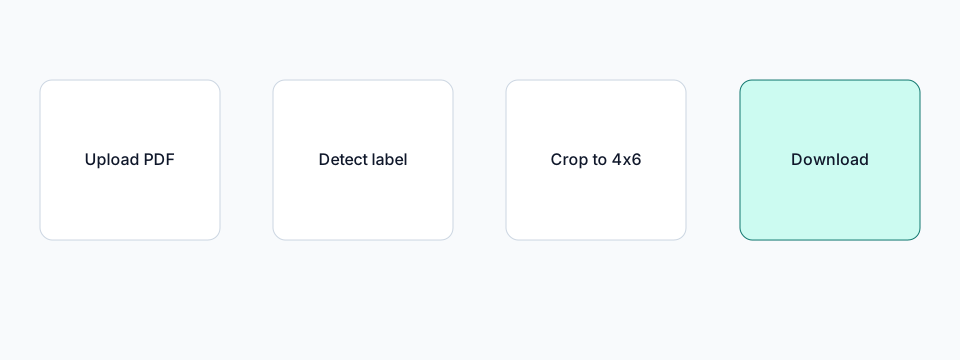
What cropping actually does
A Seller Hub PDF page is usually A4 and often mixes the shipping label with invoice text or blank margin. Cropping does not resize that whole page — it finds the label region (barcode, address, SKU) and writes a new page that is genuinely 100 × 150 mm, with everything outside that region discarded. This is what most sellers mean by “Flipkart label crop kaise kare” — the crop itself is automatic; you only step in if a page is unclear.
Step-by-step: crop a label in the browser
- Download the original shipping-label PDF from Flipkart Seller Hub.
- Open the Flipkart shipping label cropper. Drag and drop on desktop, or use Choose PDF on a phone.
- Leave 4×6 thermal printer selected unless you specifically need A4 output.
- Click Prepare Shipping Labels. This is the crop step — each page is analysed on its own, so a 25-page file does not use one crop rectangle for every page.
- Preview a few results before downloading. Check that no barcode is clipped.
- Download the PDF and print at 100% / Actual Size.
When automatic crop needs your input
If a page’s layout does not match known patterns confidently, you are asked to draw the crop box yourself instead of the tool guessing. That is deliberate — a silently wrong crop that clips a barcode is worse than a short manual step. Custom Crop supports drag, resize, and pinch-zoom on touch devices, so this works from a phone as well as a desktop.
Benefits
- No login for the basic crop workflow.
- The PDF stays in the browser for core processing.
- Multi-page Seller Hub files are processed page by page.
- Failed pages can be reviewed instead of silently printing a wrong crop.
Common problems
- Barcode will not scan: the A4 packing slip was printed on 4×6 stock with Fit to page.
- Label looks stretched: the printer scaled independently in X and Y. Use actual size.
- Barcode clipped: crop was too tight. Keep barcode safety margin on, or use Custom Crop.
- Nothing prints: check USB, 4×6 paper size in the driver, and that the roll is thermal-side out.
Related guides
Flipkart shipping label size
4×6 inch vs 100×150 mm, A4 packing slips, and why the page size in the PDF matters for thermal printers.
Flipkart thermal printer settings
Actual size, paper size, darkness and common driver mistakes when printing Flipkart labels in India.
How to print a Flipkart label
A practical walkthrough from Seller Hub download to a scannable thermal label.
Flipkart A4 PDF to thermal label
Why Seller Hub PDFs often include invoice space, and how cropping to 4×6 fixes print waste.
Ready to crop labels?
Upload a Flipkart PDF and download 4×6 thermal pages without sending the file to a server.
Open Flipkart shipping label cropper